---
title: "Kotlin"
description: "Deploy Kotlin applications on Miget using Gradle."
---
Miget Buildpacks automatically detect and build your Kotlin applications when you select **Auto detection (Miget Buildpacks)** as the build method. No configuration is required for most projects. For the full reference, visit the [migetpacks Kotlin documentation](https://migetpacks.com/languages/kotlin).
## Detection
Your application is detected as Kotlin when both of these conditions are met:
- A `build.gradle.kts` file is present in the root directory
- `.kt` source files exist in the project
## Version Detection
The Kotlin version is determined from your `build.gradle.kts` configuration. The Java version can be specified using a `system.properties` file at the root of your repository:
```properties
java.runtime.version=21
```
If no Java version is specified, a sensible default is used.
## Build Process
During the build, the following steps are performed:
1. **JDK installation** - The appropriate version of the JDK is installed.
2. **Gradle build** - Your application is built using Gradle. The Gradle Wrapper (`gradlew`) is preferred if present; otherwise, a compatible version of Gradle is provided.
3. **JAR packaging** - The build produces a runnable JAR file.
## Run Command
The run command is auto-detected from the JAR manifest's `Main-Class` attribute.
You can override the run command by defining a `web` process in a `Procfile` at the root of your repository. You can also override the run command directly in the Miget dashboard when creating your app or changing the deployment source.
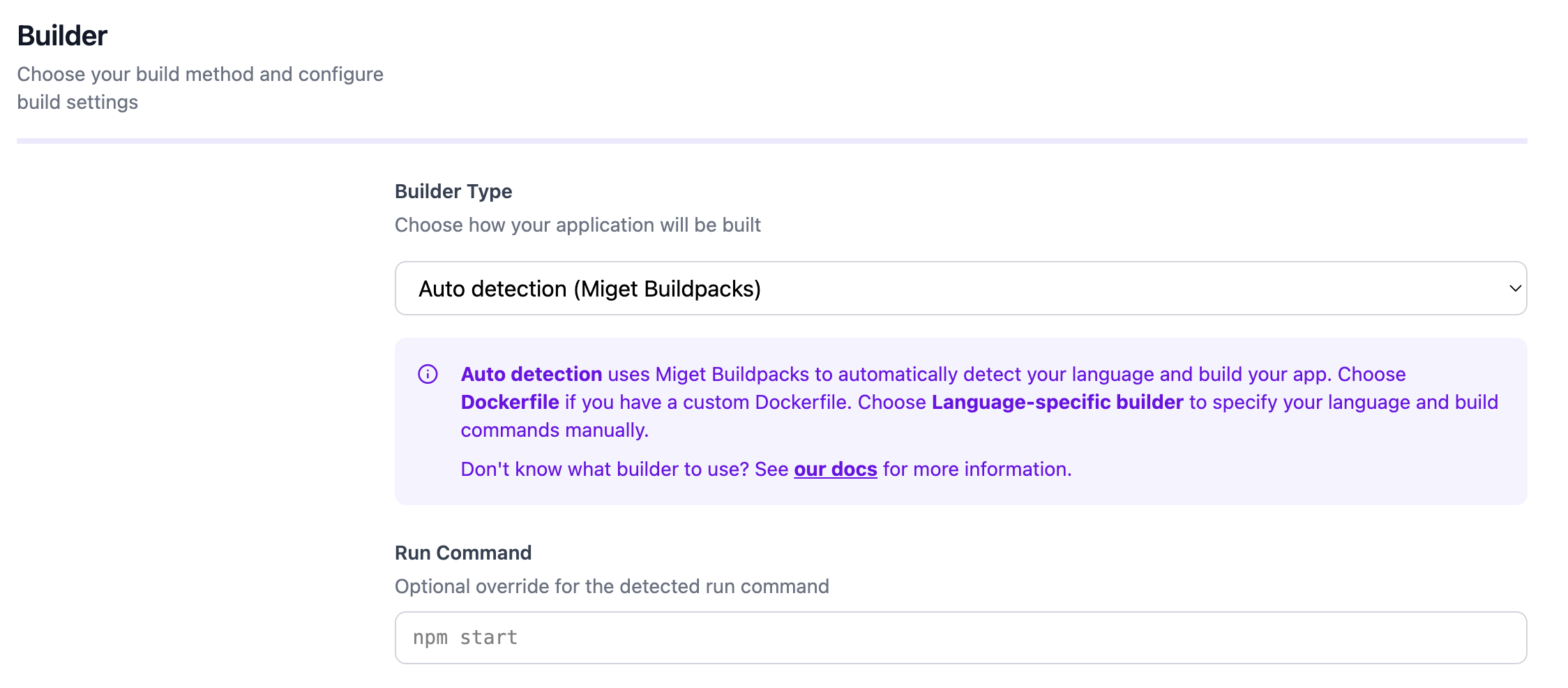 ## Configuration
You can customize the build and runtime behavior through the Miget dashboard and repository configuration files:
- **Environment variables** - Set under **Settings -> Variables** in the Miget dashboard
- **JAVA_OPTS** - Pass JVM flags such as memory settings (e.g., `-Xmx512m`)
- **Procfile** - Define the start command at the root of your repository
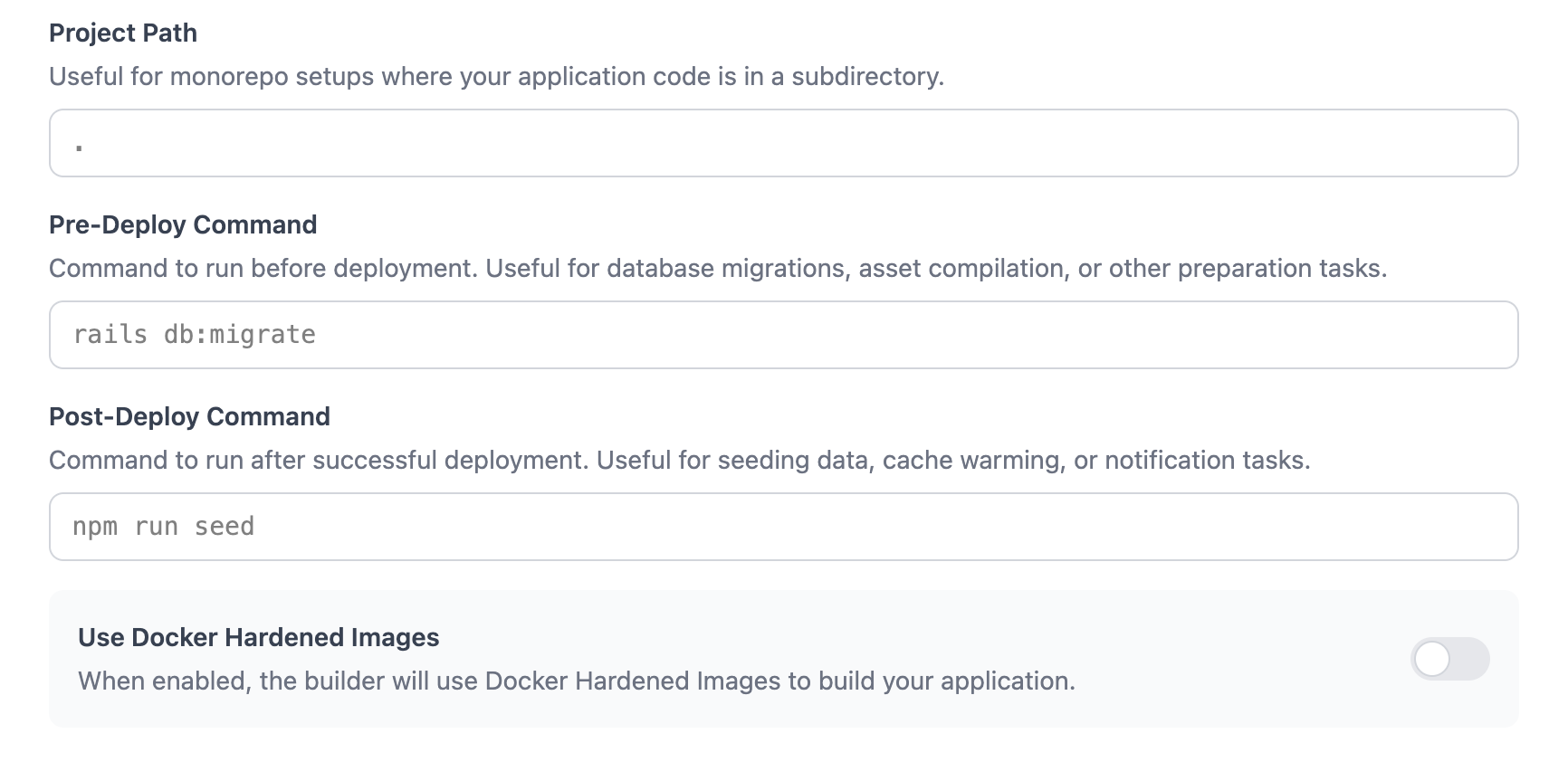
- **Project Path** - For monorepo setups, specify the subdirectory containing your application code in the **Advanced** tab
- **Pre-Deploy Command** - Run a command before deployment (e.g., database migrations) in the **Advanced** tab
- **Post-Deploy Command** - Run a command after successful deployment (e.g., seeding data, cache warming) in the **Advanced** tab
## Docker Hardened Images
You can enable Docker Hardened Images (DHI) in the **Advanced** tab when creating your app or changing the deployment source. When enabled, your application is built using distroless runtime images with a minimal attack surface, no shell, and no package manager.
 The DHI runtime uses Eclipse Temurin.
For the complete reference, see the [migetpacks Kotlin documentation](https://migetpacks.com/languages/kotlin).