

Creating a Database
You can provision PostgreSQL in two ways: as a standalone service or as an addon attached to an existing app.Standalone Service
- Open app.miget.com and go to Services.
- Click Create your first service (or New service) and pick PostgreSQL, then choose Configure.
- Assign a Resource (the compute pool where the database will run) and give the service a descriptive Name/Label.
- Customize the database:
- Pick the PostgreSQL version (see supported list below).
- Toggle Public Access on/off depending on whether you need external connectivity.
- Optionally add project-scoped environment variables such as
DATABASE_URLso every app in the project can reuse the connection string.
App Addon
If you already have an app, open it and select Addons → PostgreSQL → Add. The same configuration form appears with identical options (version, public access, environment variables). When created as an addon, Miget automatically injects app-level environment variables so your app can immediately consume the connection details.Not everyone sees every control here. Deleting a database and resetting it need
the
manage permission; adding one, its public access, its backups and its
replicas do not. See why a role does not see
something.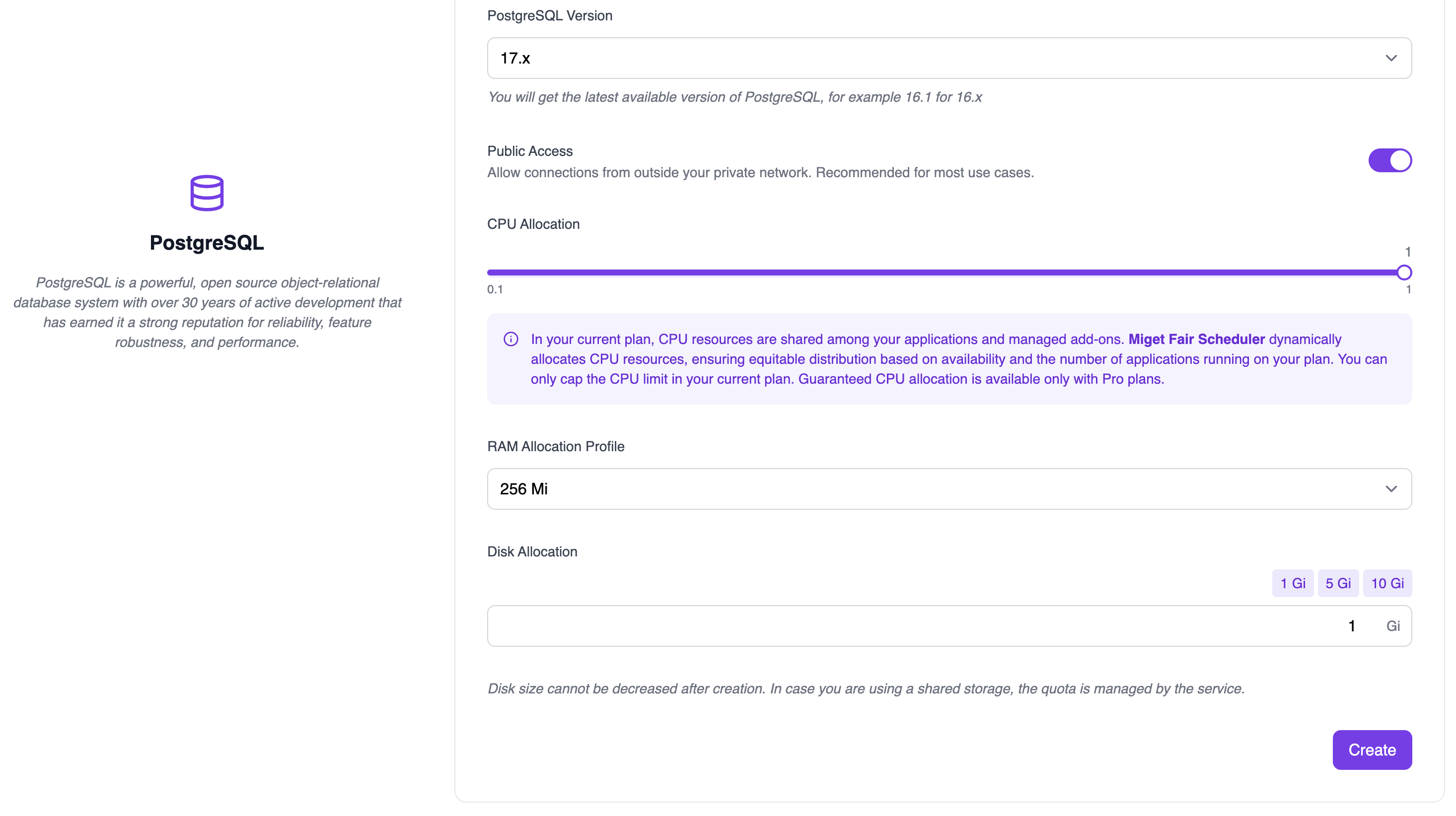
- 18.x
- 17.x
- 16.x
- 15.x
- 14.x
- 13.x (legacy, scheduled for decommission)
You receive the latest patch for the chosen major line, e.g., 18.1 for the 18.x track.
Memory Profiles
Managed Miget’s PostgreSQL instances are pre-configured with memory profiles. Miget PostgreSQL plans ranging from 128 Mi to 8 Gi. If you need more - we can always work with you to provide a custom plan; just contact us at hello@miget.comConnecting to Your Database
How you connect to your database depends on your code: some frameworks expect a single connection string or URL in an environment variable, while others need multiple connection parameters in a configuration file.When you add a PostgreSQL addon, Miget will automatically generate and set a
DATABASE_URL variable with a value like postgres://fcsn1vo8:PXERTRrlRhTb@postgres-t7hvtfin.migetcyy.eu-east-1.migetapp.internal:5432/t7hvtfin. This means you don’t have to manually configure your database connection-Miget handles it for you, ensuring the connection details are securely stored and easily accessible by your application during runtime.Connecting from Apps on Miget
Using internal connection values is the recommended way for workloads running inside Miget. The hostname, username, database, and password are displayed on the service or addon page: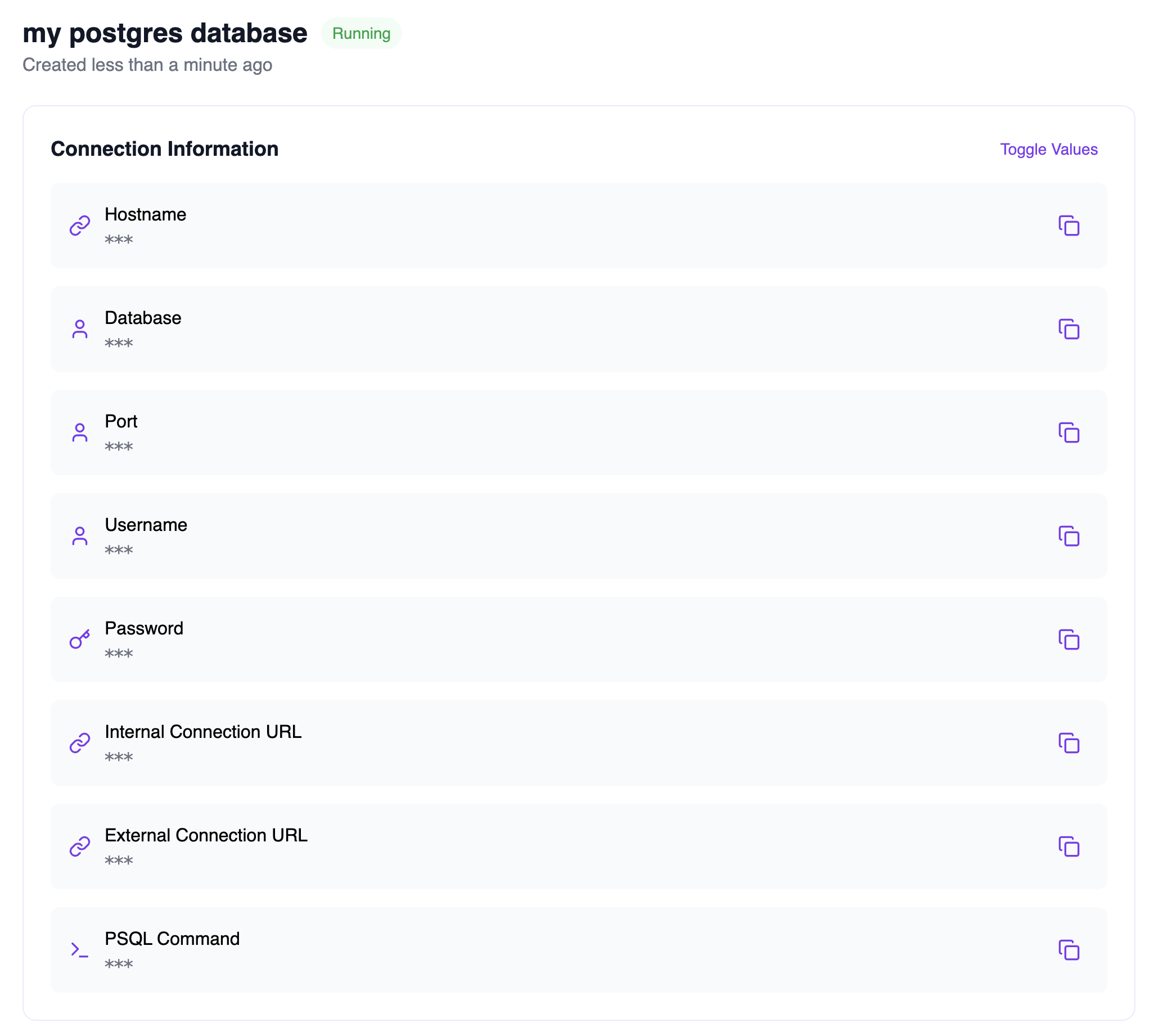
postgres://fcsn1vo8:PXERTRrlRhTb@postgres-t7hvtfin.migetcyy.eu-east-1.migetapp.internal:5432/t7hvtfin is also available if needed. Many database frameworks allow (or require) a connection string instead of individual connection parameters.
Connecting from Outside Miget
If Public Access is enabled, the Connection Information panel lists:- An External Connection URL (standard PostgreSQL URI)
-
A ready-to-run psql command, for example:
Streaming Replication
Miget supports PostgreSQL streaming replication for high availability and read scaling. You can create read replicas of your primary database and promote them when needed.Creating a Replica
You can add a read replica to any PostgreSQL database - both standalone services and app addons.- Open your PostgreSQL service or addon
- Go to the Instances or Replication section
- Click Create Replica
- The replica streams changes from the primary in real time
Promoting a Replica
When you need a replica to become the new primary (for example, during a planned failover or region migration):- Go to the replica’s details page
- Click Promote to Primary
- The replica stops replicating and becomes an independent, writable database
External Replicas
You can also connect external PostgreSQL replicas for cross-region setups or migration scenarios. Use the Promote External option to make an externally connected replica the new primary.Disk Usage Monitoring
Track disk usage per database instance from the service details page. This helps with capacity planning and identifying when you need to increase your storage allocation.Backups
We take complete database backups every day and retain all backups for at least 7 days.Disk Space
We offer PostgreSQL plans ranging from 128 Mi to your current Miget plan’s limit of storage per instance. The database storage limit applies to all storage the PostgreSQL database needs, including caches, indices, etc. Backup storage does not count toward your plan’s storage limit. If you need more - we can always work with you to provide a custom plan; just contact us at hello@miget.comMetrics
Dashboard
You can view database metrics any time in the Miget Dashboard. Currently, we support the following:
You can see these metrics under Miget Overview page.
Database Versions & Upgrades
Miget currently supports PostgreSQL 13, 14, 15, 16, 17, and 18. You can select the major version of your database at creation time, after which it cannot be changed. PostgreSQL 13 is in legacy status and scheduled for decommission, so new databases should choose a newer major version. We will periodically upgrade the minor version of your databases to apply the latest security fixes. For any maintenance periods that require downtime, we email you ahead of time. We also allow you to run the maintenance yourself, simply stop and start your database from the Miget Dashboard. A newer Docker image of PostgreSQL will run your database.Upgrading to a New PostgreSQL Major Version
Here’s an overview of the process for upgrading your database to a newer PostgreSQL version:- Set up a new database instance with the desired version.
- Stop any applications that write to the current database to avoid discrepancies between the existing data and the backup.
- Create a backup of your current database.
- Restore the backup to the new database instance.
- Update your applications to connect to the new database and resume their operation.
pg_dump command. Replace variables with your connection details (internal or public hostname):
Deleting Databases
If you choose to delete a PostgreSQL instance, we do not keep any backups or snapshots of your data. Be sure to download a backup before proceeding with deletion.PostgreSQL Extensions
Miget PostgreSQL databases come with a curated set of popular extensions baked into the image. Some are pre-installed in every new database; others you can enable on demand from any SQL client.Pre-installed in every database
These extensions are created automatically when your database is provisioned (no action required):
You can confirm what is currently installed in your database with:
Available on demand
RunCREATE EXTENSION from any SQL session (psql, pgcli, your app’s ORM) to add any of these to your database:
Example:
Some of these normally need a library loaded at server start, which elsewhere means editing
postgresql.conf and restarting: timescaledb, pg_cron, pgaudit, pg_net, pg_tle, anon, pg_squeeze, pg_partman, pg_failover_slots, pg_stat_kcache, pg_hint_plan, pg_qualstats, pg_show_plans, set_user and credcheck. Miget preloads them for you, so CREATE EXTENSION is the only step and their background workers are already running.psql session using the connection details from your database’s Connection Information panel:
Extension versions may vary slightly between PostgreSQL major versions. For example,
pg_partman and vectorscale ship with older releases on PostgreSQL 13 to match upstream’s PG13 support window.Full-Text Search Dictionaries
Each Miget PostgreSQL database ships with around 110 Hunspell text-search dictionaries (sourced from Debian’shunspell-* packages, recoded to UTF-8 in the image) and per-language stopword lists for 58 languages (sourced from stopwords-iso). Both are dropped into PostgreSQL’s tsearch_data directory at image build time, so any locale that ships with the image is reachable from SQL with no per-database setup.
Available locales
Highlights of what’s bundled:Registering a text-search configuration
The example below registers Polish and makes it the database’s default text-search config. The same pattern works for any locale in the table above (substitute the appropriate locale slug).Locale names in
DictFile, AffFile, and StopWords must be all lowercase. PostgreSQL’s get_tsearch_config_filename() rejects uppercase characters in these arguments, so use pl_pl (not pl_PL), de_de (not de_DE), and so on. The image provides both forms on disk for compatibility, but only the lowercase one is callable from SQL.Stopwords coverage
Per-locale.stop files are provided for the 58 languages covered by stopwords-iso (including Polish, German, French, Spanish, English, Italian, Portuguese, Dutch, Russian, Greek, Lithuanian, Arabic, Hebrew, Hindi, Chinese, and more).
For languages outside that set, PostgreSQL’s own Snowball stop-word lists are still available under their full English names (english, russian, french, …):
Further reading
Free PostgreSQL with public access
Set up the free tier database and connect from anywhere over IPv4/IPv6.
Free PostgreSQL hosting compared
Six free tiers side by side, including the catch each one hides.