

- Auto TLS (Recommended): Miget automatically provisions and manages certificates for your applications using Let’s Encrypt or ZeroSSL. Available on both Free and Paid plans.
- Manual TLS: Upload your own certificates obtained from other sources.
HTTP traffic is automatically redirected to HTTPS to keep your users’ data secure.
Managing SSL Certificates
Navigate to your application’s Settings → SSL Certs section to view and manage your certificates.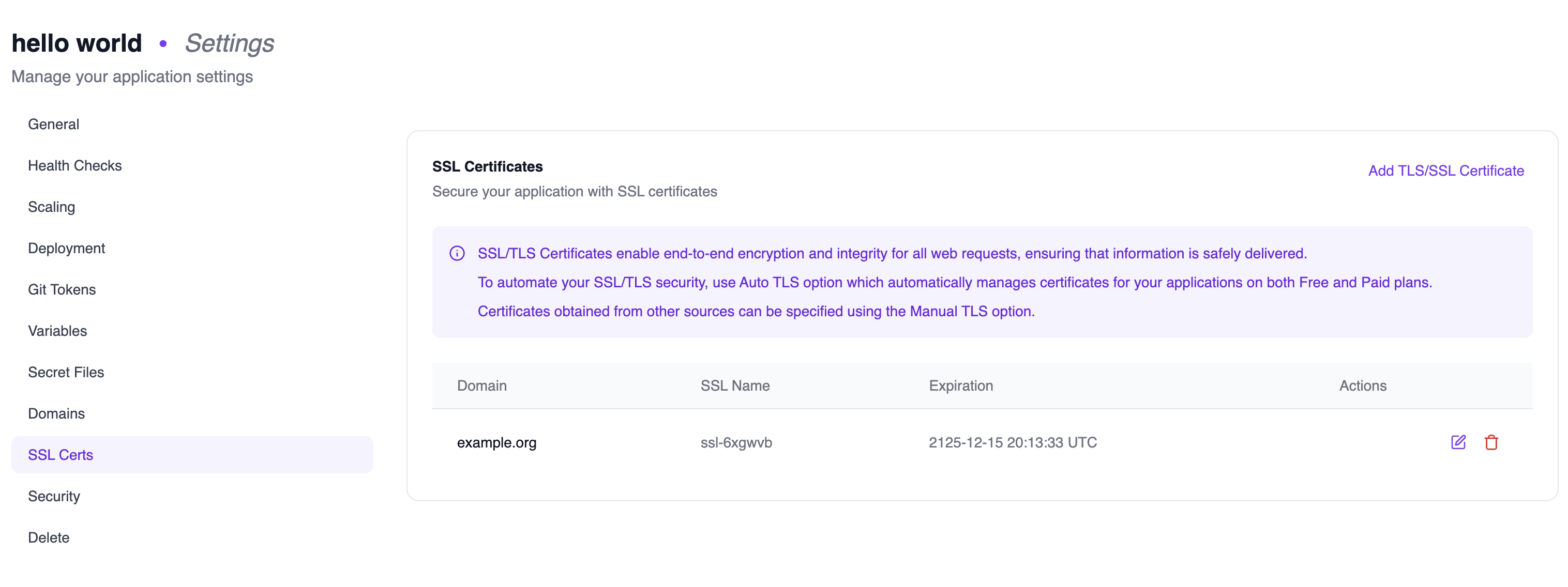
- Domain: The domain the certificate is assigned to
- SSL Name: The certificate identifier
- Expiration: When the certificate expires
- Actions: Edit or delete the certificate
Adding a Custom Certificate
If you need to use your own certificate instead of Auto TLS:- Navigate to Settings → SSL Certs and click Add TLS/SSL Certificate.
-
Enter your certificate details:
- Public Key: Your SSL certificate (PEM format)
- Private Key: Your certificate’s private key

- Click Add Certificate to save.
Assigning a Certificate to a Domain
To use a custom certificate for a specific domain:- Navigate to Settings → Domains and click the edit icon next to your domain.
-
In the Edit Domain dialog:
- Toggle off Automatic (Recommended) to use a custom certificate
- Select your certificate from the dropdown
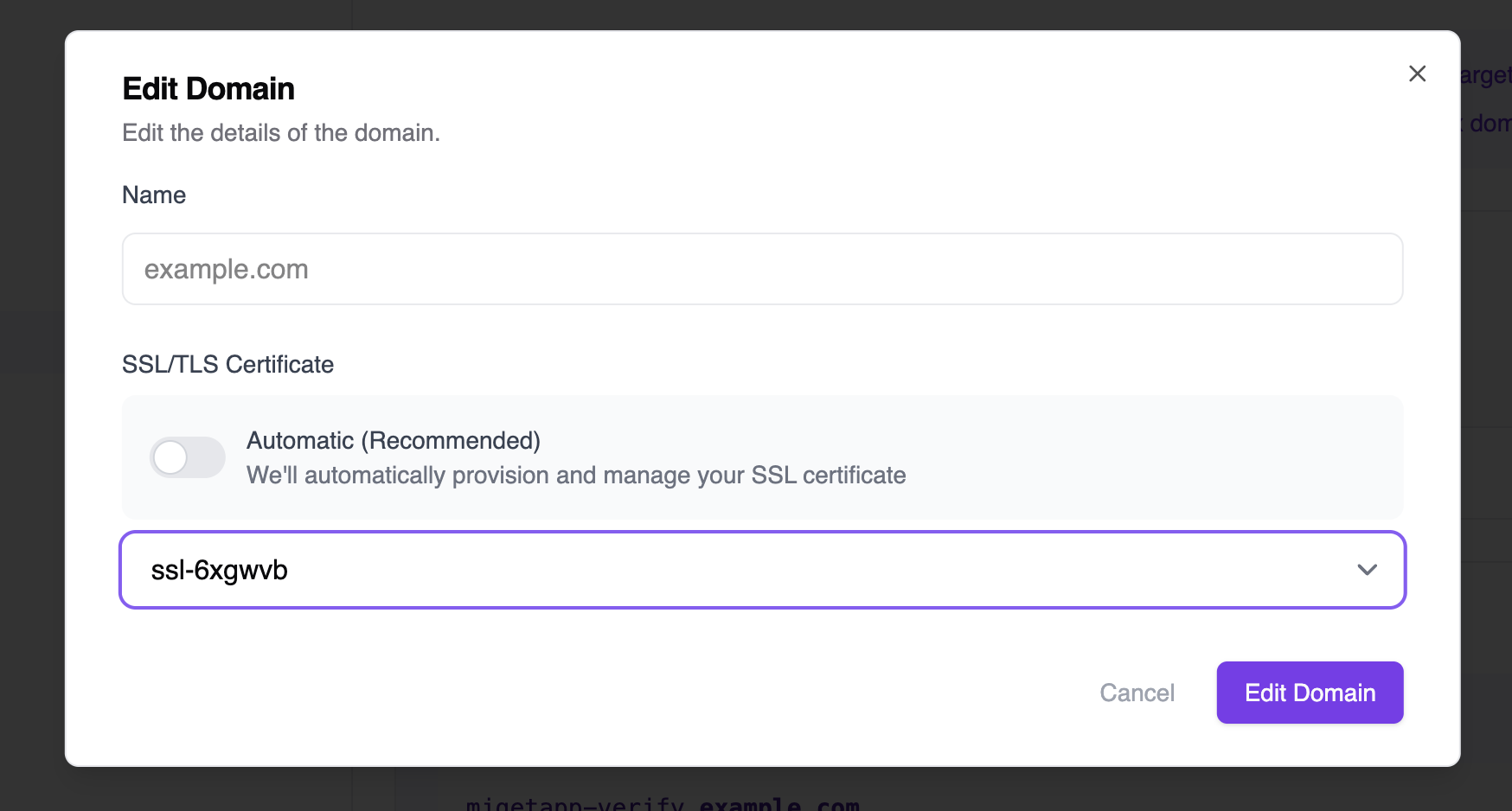
- Click Edit Domain to apply the changes.
We recommend using Automatic SSL/TLS certificates for most use cases. Custom certificates are useful when you have specific requirements, such as Extended Validation (EV) certificates or certificates from a specific certificate authority.