

View a live demo at dockerfile.onmiget.com.
Prerequisites
Before you begin, ensure you have:- A Miget account at app.miget.com
- Git installed on your local machine
- A Dockerfile in your application repository
- Basic familiarity with Docker and command line operations
Prepare Your Application
Clone the sample Docker application to your local machine:Create and Deploy Your App
1
Create a new app
Navigate to app.miget.com and click the New button, then select Application.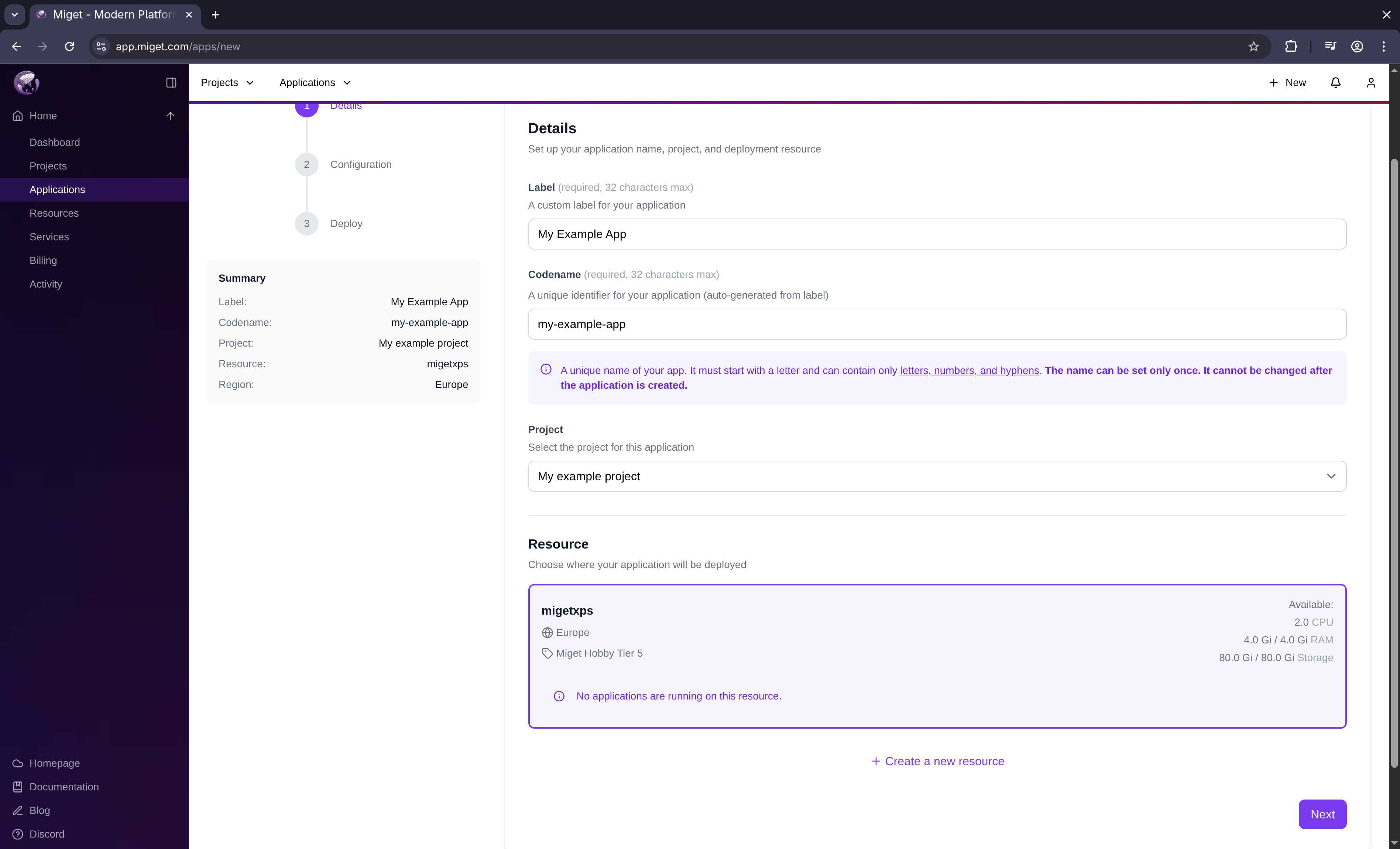 In the Create new App window:
- Enter your App Name
- Select the resource where you want to deploy
- Click Next
Miget automatically appends a unique suffix to your app name (e.g.,
example-1jgiq) to ensure uniqueness.2
Configure builder and size
Configure your app’s build and runtime settings: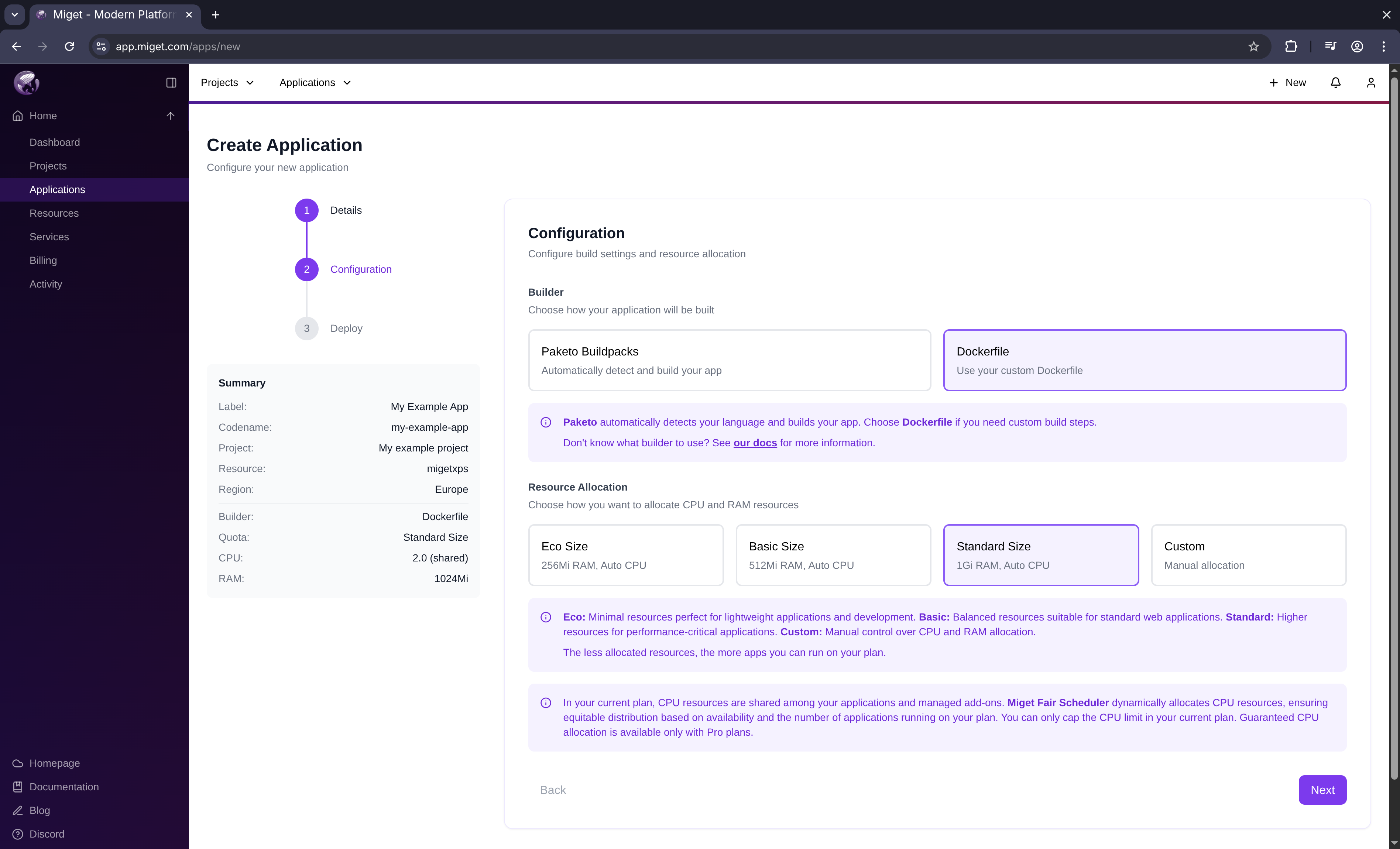
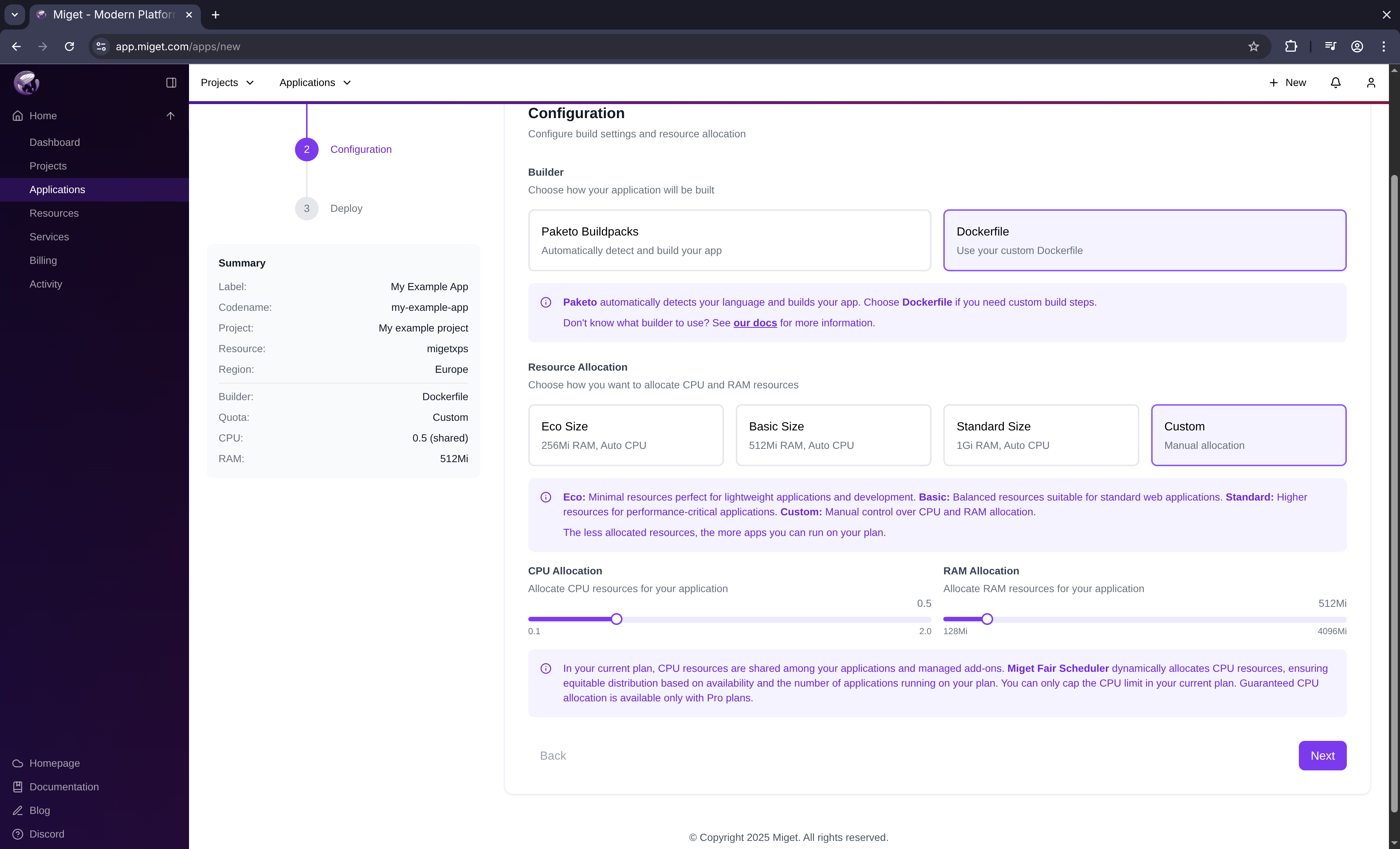
- Select Docker Engine as the builder type
- Choose a predefined size or specify custom resources
- Click Next
3
Select deploy method
Choose how you want to deploy your application: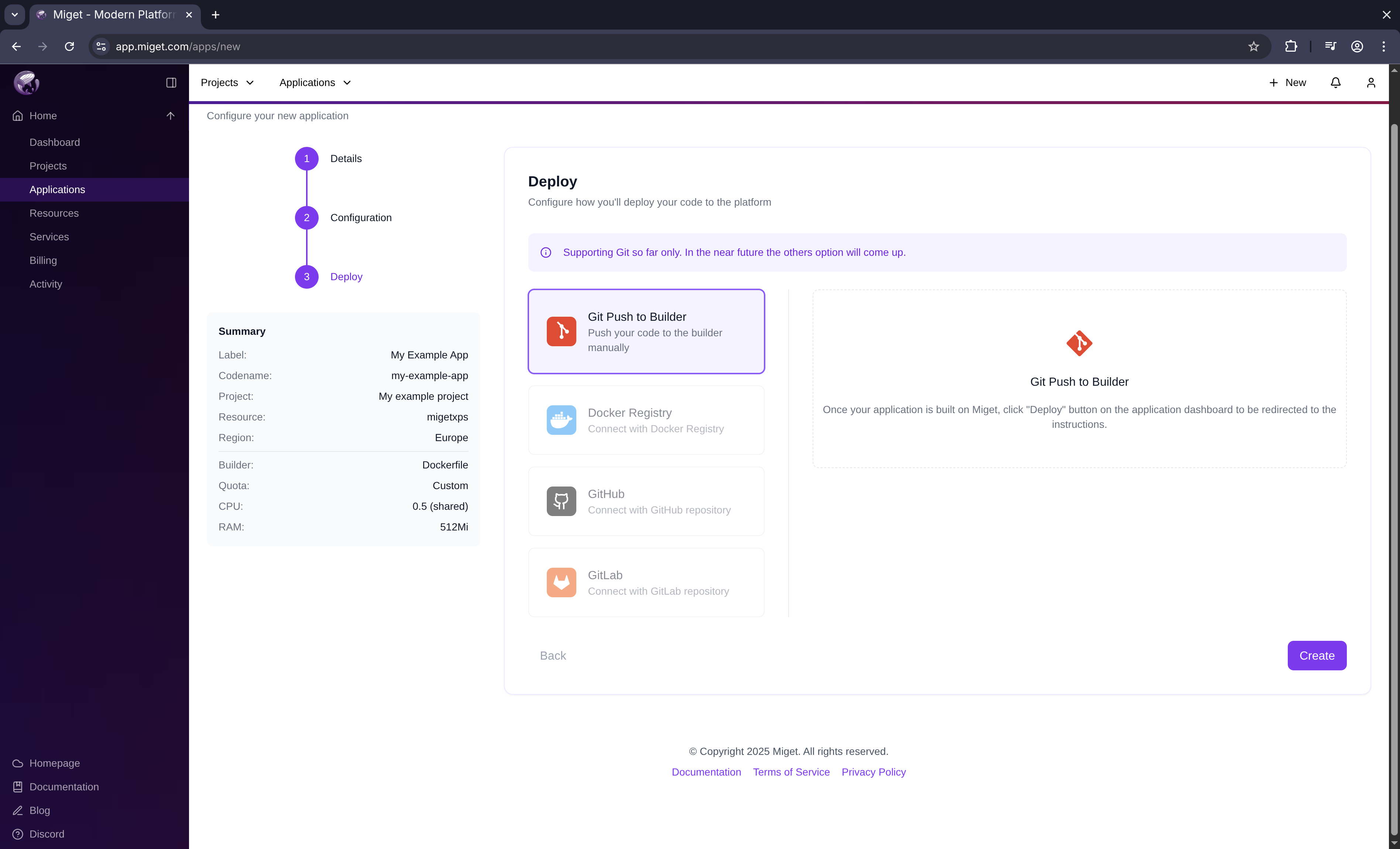
- Select git push as the deploy method
- Click Create
Currently,
git push is the only supported deploy method.You’re redirected to the app overview screen. Your app space (ingress, build context) is being created in the background.
4
Get your Git token
You need a Git token to push your code to Miget.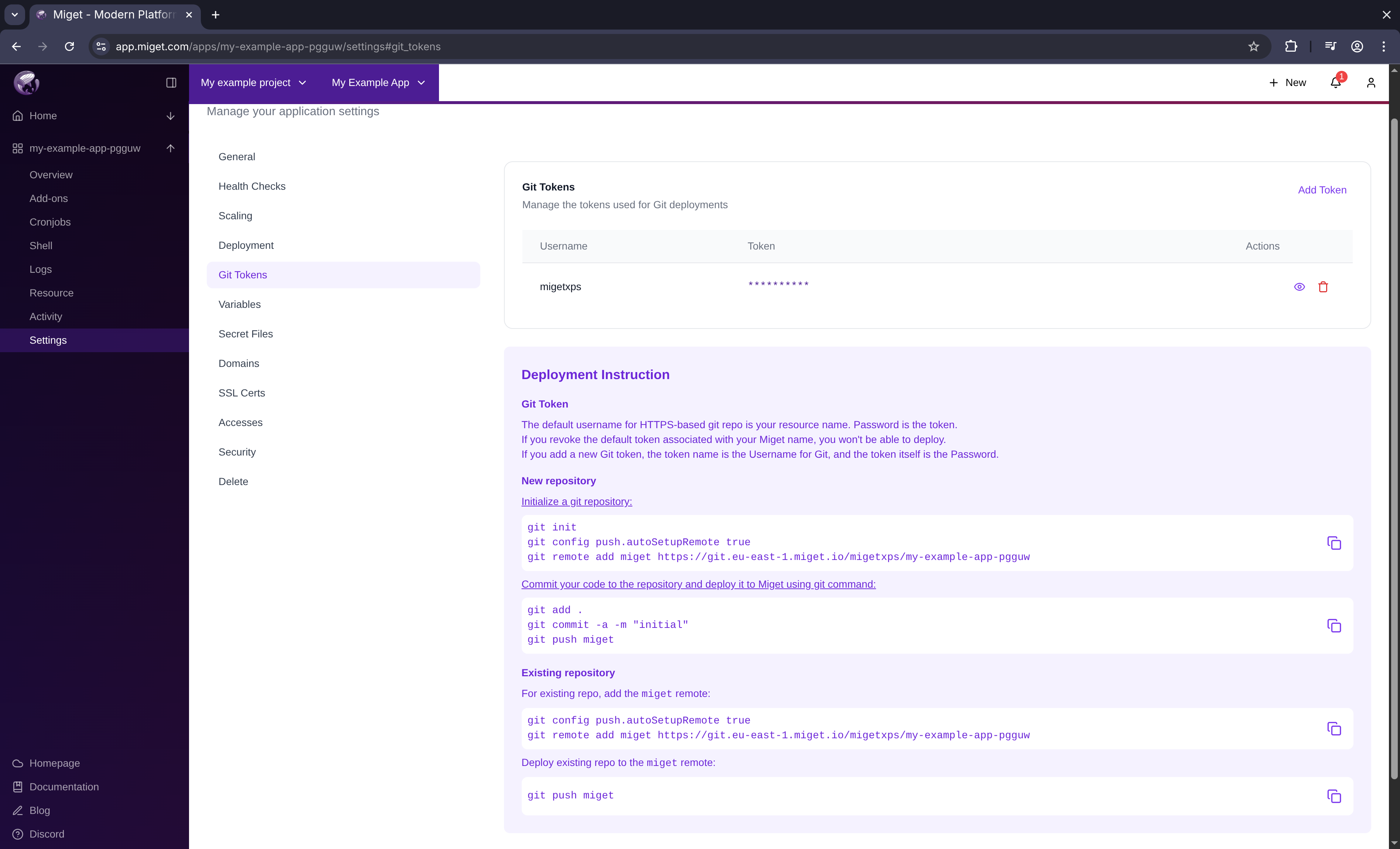
- Click the Deploy via git button
- Click See the token button
- Copy your token
- Your Miget name is the default username for Git
- The token is your password
- Revoking the default token prevents deployments
- Custom tokens use the token name as the username
5
Add Miget as a Git remote
Configure your local repository to push to Miget:Replace the placeholders:
<region>- Your Miget region code<your-miget-name>- Your compute resource name<app-name>- Your application name
6
Push your code
Deploy your application by pushing to Miget:Miget automatically:
- Detects your Dockerfile
- Builds the Docker image
- Pushes to Miget’s registry
- Deploys to Kubernetes
- Provides a public URL
Your app is live at the URL displayed in the deployment output.
Next Steps
Custom Domains
Set up a custom domain for your application
Environment Variables
Configure secrets and environment variables