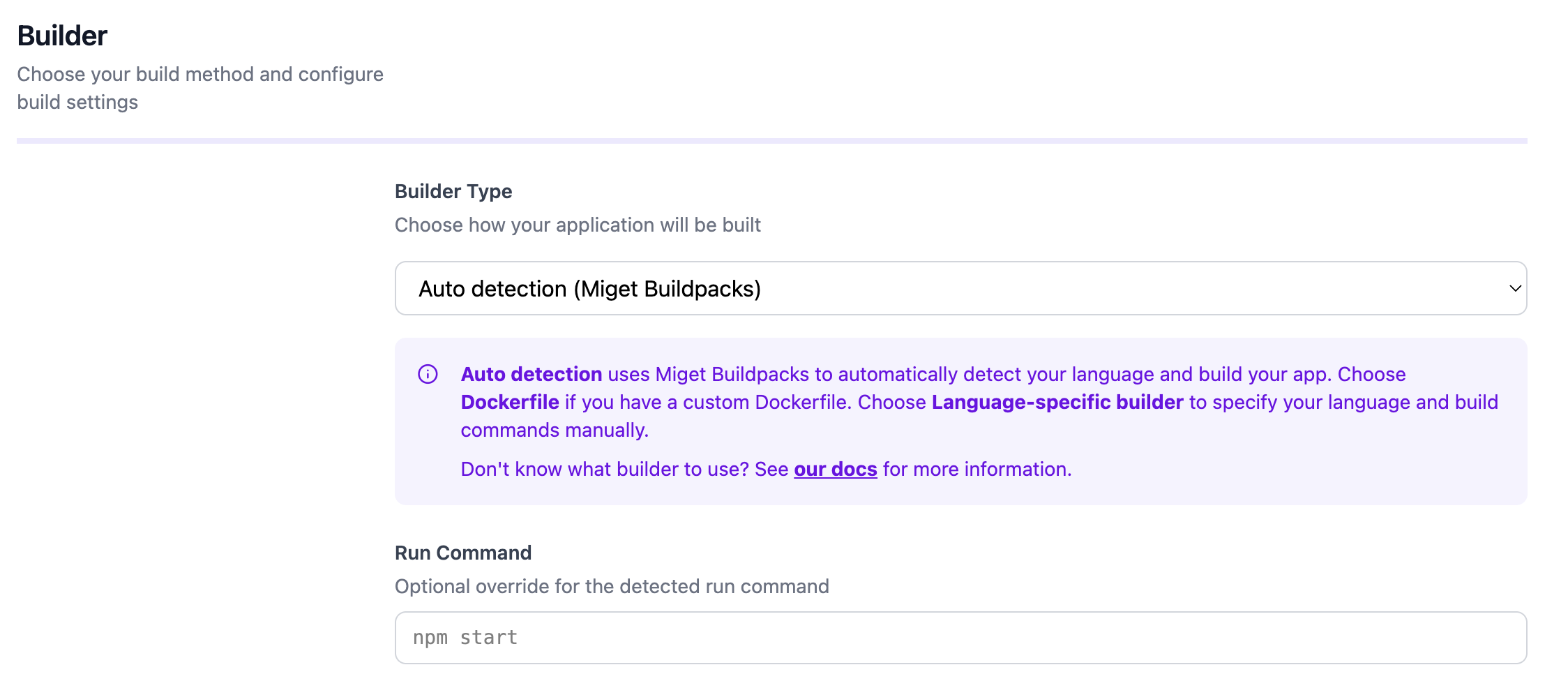

Overview
This documentation is adapted for Miget purposes and is based on information from the Paketo .NET Core Buildpack documentation.
Dockerfile, please refer to the Dockerfile page for guidance and best practices.
Prerequisites
The pack CLI is used throughout the examples. Examples assume that the Paketo Base builder is the default builder:Example App
A demo instance of this app is hosted at dotnet.onmiget.com.
Build
Run
Install Specific .NET Runtime and ASP.NET Versions
The .NET Core Runtime and .NET Core ASP.NET Buildpacks allow you to specify a version of the .NET Core Runtime and ASP.NET to use during deployment. This version can be specified in several ways including through aruntimeconfig.json, MSBuild Project file (e.g. *.csproj, *.fsproj, or *.vbproj), or build-time environment variables. When specifying a version of the .NET Core Runtime and ASP.NET, you must choose a version that is available within these buildpacks. These versions can be found in the .NET Core Runtime release notes and [].NET Core ASP.NET release notes](https://github.com/paketo-buildpacks/dotnet-core-aspnet/releases).
.NET Core ASP.NET will only be included in the build process if your application declares its Runtime Framework as either Microsoft.AspNetCore.App or Microsoft.AspNetCore.All.
Using BP_DOTNET_FRAMEWORK_VERSION
With ENV variable
To configure the buildpack to use a certain version of the .NET Core Runtime and ASP.NET when deploying your app, set theBP_DOTNET_FRAMEWORK environment variable at build time, or by adding it to your project.toml. See the Cloud Native Buildpacks documentation to learn more about project.toml files.
Environment Variable set under Settings -> Variables: BP_DOTNET_FRAMEWORK_VERSION=5.0.4
In a project.toml file
If you specify a particular version using the above environment variable, the buildpack will not run runtime version roll-forward logic. To learn more about roll-forward logic, see the Microsoft .NET Runtime documentation.
Using runtimeconfig.json
If you are using aruntimeconfig.json file, you can specify the .NET Core Runtime version within that file. To configure the buildpack to use .NET Core Runtime v2.1.14 when deploying your app, include the values below in your runtimeconfig.json file:
Using a Project file
If you are using an MSBuild Project file (e.g.*.csproj, *.fsproj, or *.vbproj), you can specify the .NET Core Runtime version within that file. To configure the buildpack to use .NET Core Runtime v2.1.14 when deploying your app, include the values below in your Project file:
Install a Specific .NET SDK Version
By default, the .NET Core SDK Buildpack installs the latest available patch version of the SDK that is compatible with the installed .NET Core runtime. The available SDK versions for each buildpack release can be found in the release notes.Because versions of the .NET Core runtime and .NET Core SDK dependencies are so tightly coupled, most users should instead use the
BP_DOTNET_FRAMEWORK_VERSION environment variable to specify which version of the .NET Core runtime that the .NET Core Runtime Buildpack should install. The .NET Core SDK buildpack will automatically install an SDK version that is compatible with the selected .NET Core runtime version.Build one project in a multi-project solution
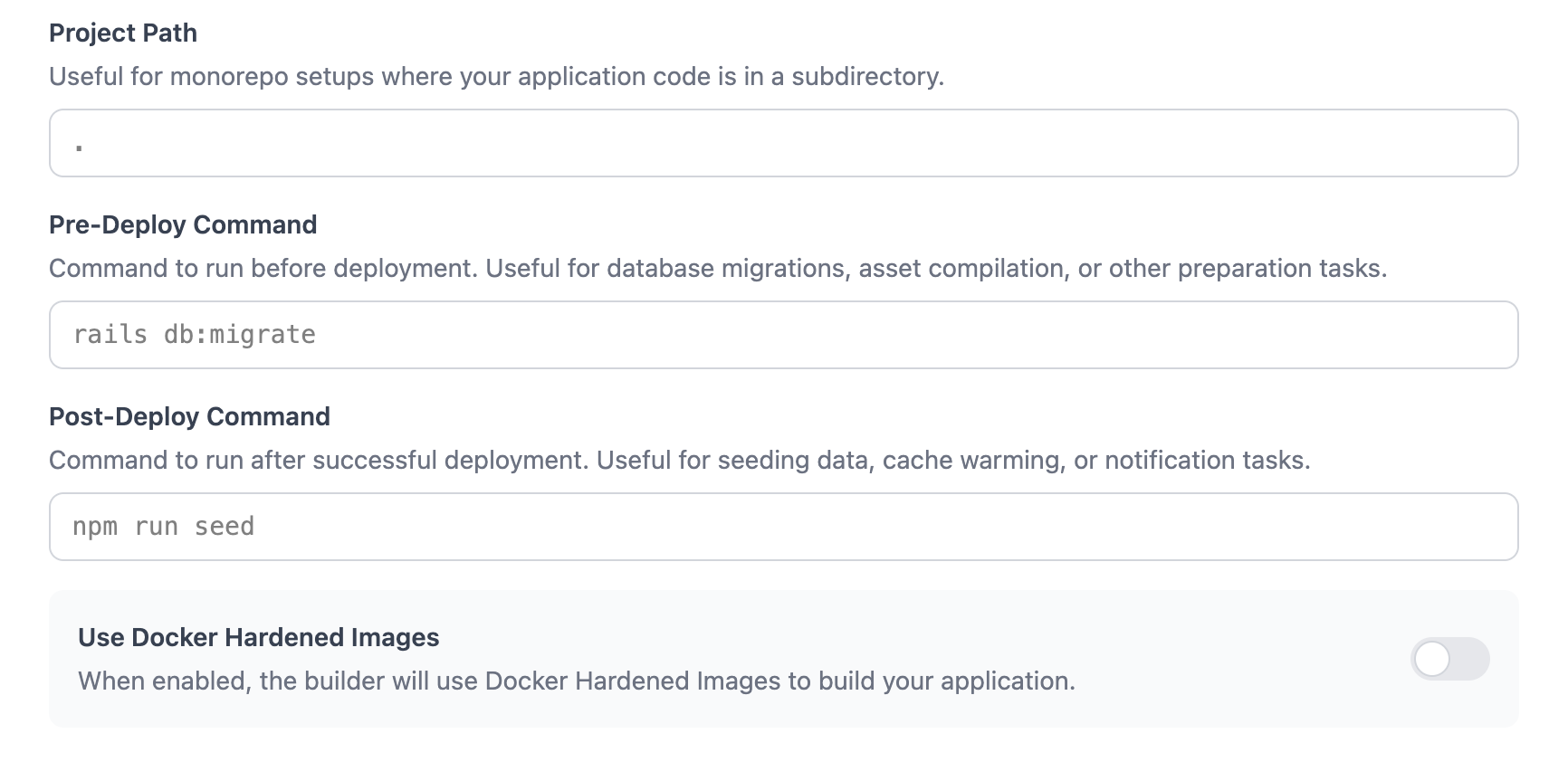
By default, the Paketo .NET buildpack will consider the root of the provided source code to be the root of the startup project you want to build. This directory should contain a C#, F#, or Visual Basic Project file. If your startup project directory is not located at the root of your solution, you will need to specify a project path. For example, the following directory structure reflects a common .NET project setup, in which the startup project,App, depends on other projects in the solution: ComponentProject and OtherComponentProject.
BP_DOTNET_PROJECT_PATH environment variable.
Using BP_DOTNET_PROJECT_PATH
You can specify the path to the startup project you want to build by setting the BP_DOTNET_PROJECT_PATH environment variable at build time, or by adding it to your project.toml. See the Cloud Native Buildpacks documentation to learn more about project.toml files.
Environment Variable set under Settings -> Variables: BP_DOTNET_PROJECT_PATH=./App
In a project.toml file
Configure the dotnet publish Command
The Paketo .NET buildpack builds apps using the dotnet publish command, with certain opinionated flags by default. (See reference documentation for information about the default flagset.) It is possible to override or add to these defaults.
Using BP_DOTNET_PUBLISH_FLAGS
Set the BP_DOTNET_PUBLISH_FLAGS environment variable at build time to provide additional flags to dotnet publish.
With ENV variable
When building with Miget Builder, setBP_DOTNET_PUBLISH_FLAGS at build time with the --env flag. For example, to add --verbosity=normal and --self-contained=true to the build flagset:
Environment Variable set under Settings -> Variables: BP_DOTNET_PUBLISH_FLAGS="--verbosity=normal --self-contained=true"
In a project.toml file
Create a project.toml file in your app directory that sets BP_DOTNET_PUBLISH_FLAGS at build time. For example, to add --verbosity=normal and --self-contained=true to the build flagset, set the environment variable as follows:
Provide NuGet Configurations
A NuGet configuration file can be provided to the build process in two different ways. The provided file will have an effect on thedotnet publish command within the build process.
Via Service Bindings
Configuration can be provided to the build without explicitly including the file, which might contain credentials or other sensitive data, in the application directory. When building with the pack CLI, a service binding containing anuget.config file can be provided. In addition to the nuget.config file, the binding must be of type nugetconfig. Check out the service binding documentation for more details on service bindings.
The binding will be made available as a “user-level” NuGet configuration at $HOME/.nuget/NuGet/NuGet.Config during the build process. The configuration applies across all operations involving NuGet, but will be overridden by project-level configurations.
To build at Miget with the binding, you need to create a Volume as /bindings and store your credential there.
Next, add Variable under Settings -> Variables:
SERVICE_BINDING_ROOT=/bindings
Via Application Source Code
A NuGet configuration file can also be provided in the application source directory following .NET Core rules. The project-level configuration will take precedence over a NuGet configuration provided via service binding.Enable Process Reloading
Enable Remote Debugging
Override the Start Process Set by the Buildpack
Enable DEBUG logging
Users of the .NET Core buildpack can access extra debug logs during the image build process by setting the BP_LOG_LEVEL environment variable to DEBUG at build time. Additional debug logs will appear in build logs if the relevant buildpacks have debug log lines.
Environment Variable set under Settings -> Variables:
BP_LOG_LEVEL=DEBUG