

Detection
Your application is detected as Java when one of these files is present in the root directory:pom.xml(Maven)build.gradleorbuild.gradle.kts(Gradle)
Version Detection
The Java version is determined from the following sources, in order of priority:.java-versionsystem.properties(e.g.,java.runtime.version=17)pom.xmlproperties (e.g.,<java.version>17</java.version>or<maven.compiler.release>17</maven.compiler.release>)
Build Process
During the build, the following steps are performed:- Build tool detection - The build tool is auto-detected:
pom.xml→ Mavenbuild.gradleorbuild.gradle.kts→ Gradle
- Gradle wrapper - If a Gradle wrapper (
gradlew) is present, it is used instead of a system-installed Gradle. - Compilation - Your application is compiled and packaged (e.g., into a JAR or WAR).
- JVM provisioning - The Eclipse Temurin JDK is used for building, and the appropriate JRE is included in the runtime image.
Run Command
The run command is auto-detected from the JAR manifest (e.g., theMain-Class attribute). You can override it with a Procfile.
You can also override the run command directly in the Miget dashboard when creating your app or changing the deployment source.
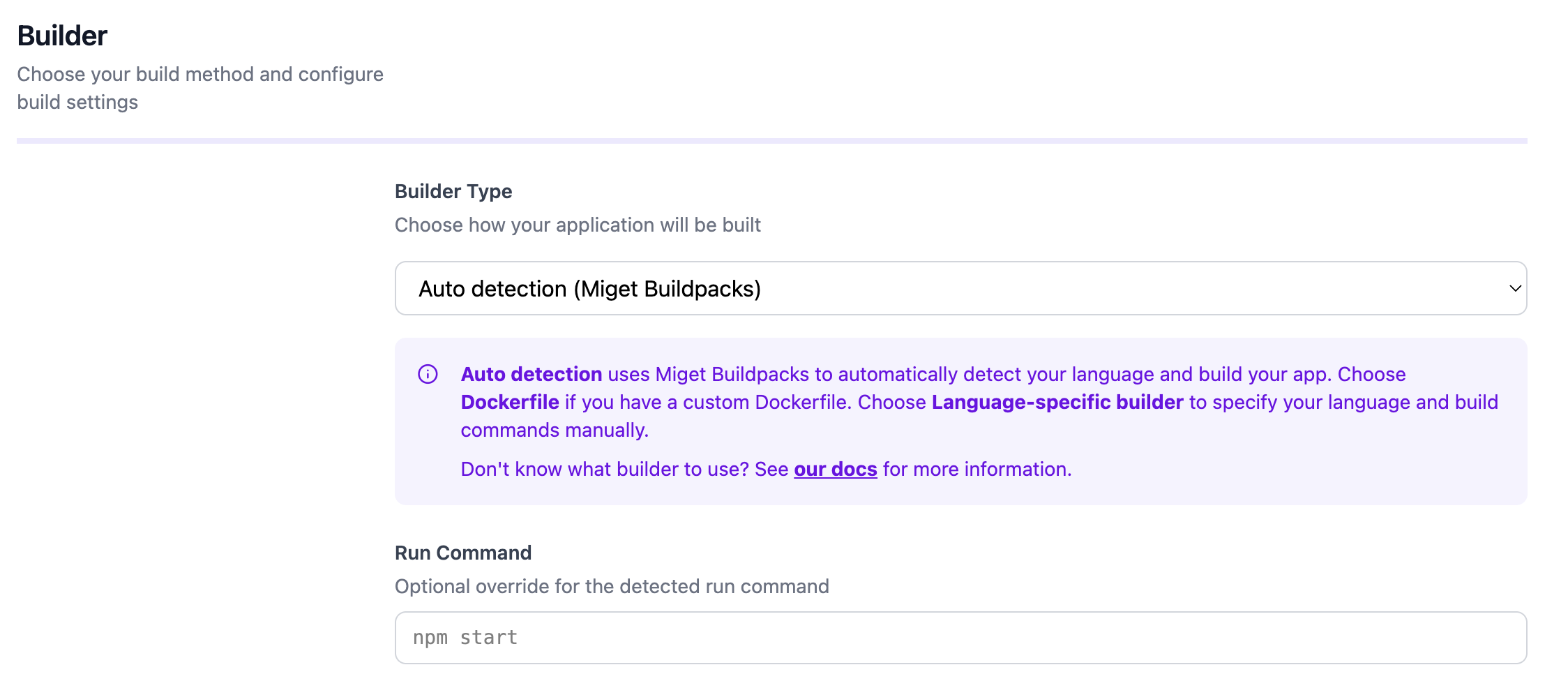
Configuration
You can customize the build and runtime behavior through the Miget dashboard and repository configuration files:- Environment variables - Set under Settings -> Variables in the Miget dashboard
- JAVA_OPTS - Pass JVM flags such as memory settings (e.g.,
-Xmx512m) - Procfile - Define the start command at the root of your repository
- app.json - Application manifest for additional configuration
- Project Path - For monorepo setups, specify the subdirectory containing your application code in the Advanced tab
- Pre-Deploy Command - Run a command before deployment (e.g., database migrations) in the Advanced tab
- Post-Deploy Command - Run a command after successful deployment (e.g., seeding data, cache warming) in the Advanced tab
Docker Hardened Images
You can enable Docker Hardened Images (DHI) in the Advanced tab when creating your app or changing the deployment source. When enabled, your application is built using distroless runtime images with a minimal attack surface, no shell, and no package manager.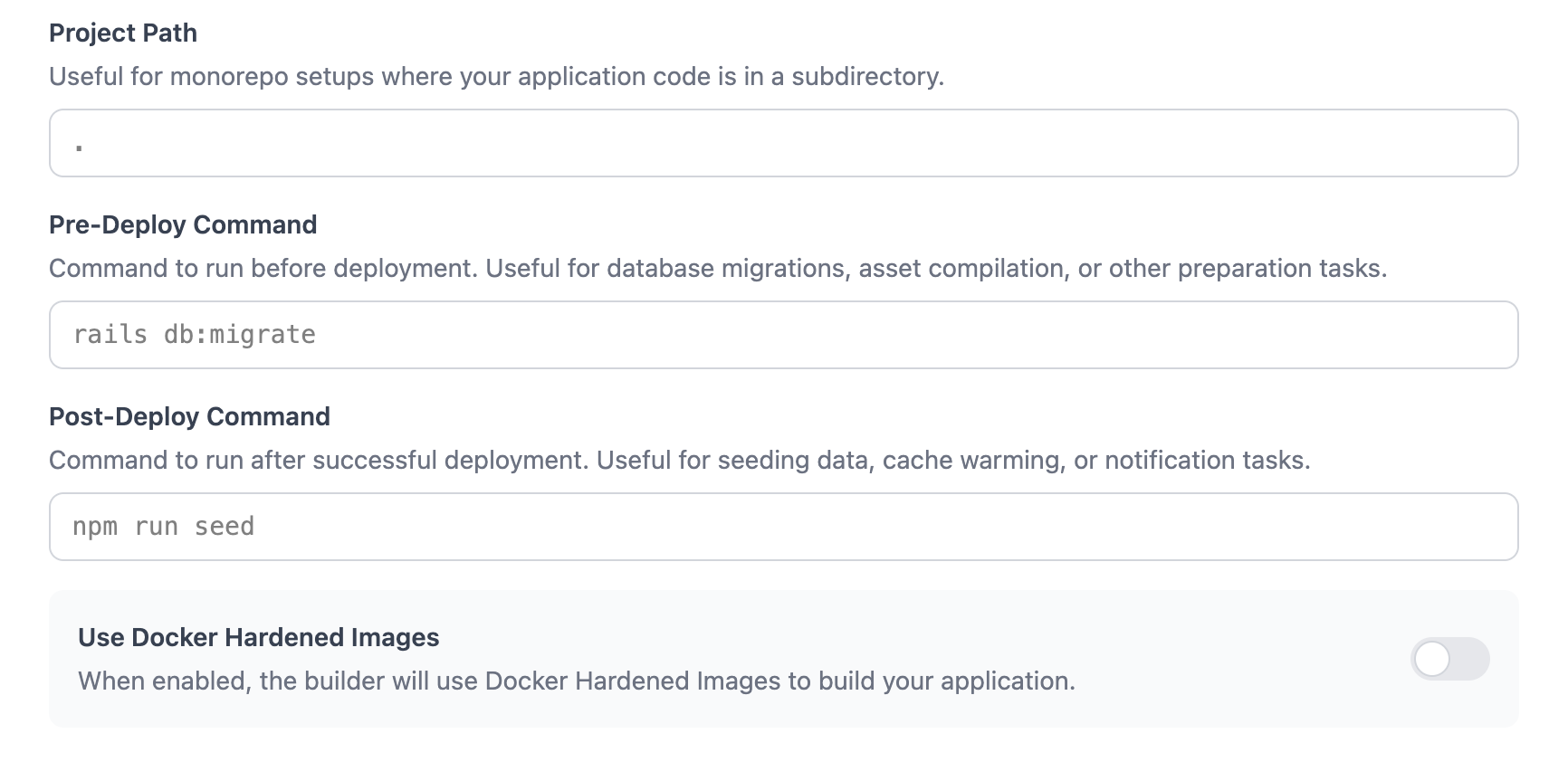
For the complete reference, see the migetpacks Java documentation.